We use cookies to enhance your experience, analyze traffic, and personalize content. Some cookies are essential, while others help us understand how you interact with our site. You can manage your preferences at any time from here:
``` | [Download](https://gdprstorage.b-cdn.net/faq/files/Cookie%20Preferences-DE-FR-IT-ES.zip) - HTML for German, French, Italian and Spanish versions of the page Feel free to change the text content as per your preferences. 7. **Save** the changes and **set the page to** **Visible** A reference on the process can be checked below: [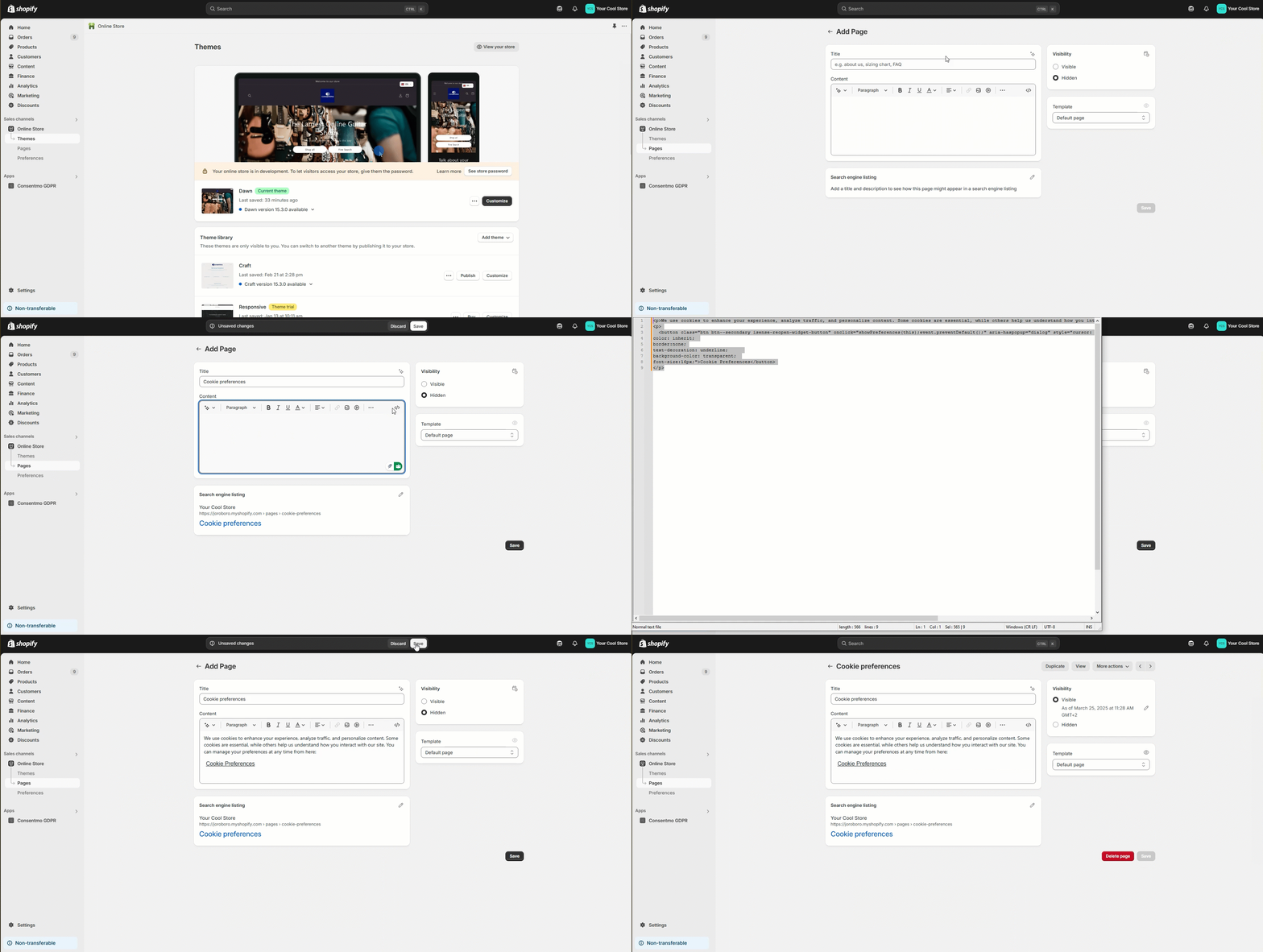](https://gdprstorage.b-cdn.net/faq/gif/cookie-preferences-page-creation.gif) # Set the link in the Footer 1. Go to the **Content** tab of the Store admin 2. Select **Menus** section 3. Select the **Footer menu** where you want to place the link 4. Create the element with the **Add menu item** option 5. Set the **name of the link** and also **find the Cookie preferences page** created in the previous step **to link it there** You can also check a **video reference** on how this can be done **below**: [](https://gdprstorage.b-cdn.net/faq/gif/cookie-preferences-page-footer-adding.gif) # Button option: If you decide to set the option as a button in one of the store pages, please follow the steps below: 1. Go to **Online store > Pages** 2. Seclect the page where you want to place the button 3. Set the **Show HTML** option for the page 4. Set the **below HTML** in the place where you want to have the button in the page ```html ``` In the code for the **Button** option you can change the colors and the rounding or the corners as per your preferences so it can match the styling of your store. You can also check a **reference** on how this can be done **below**: [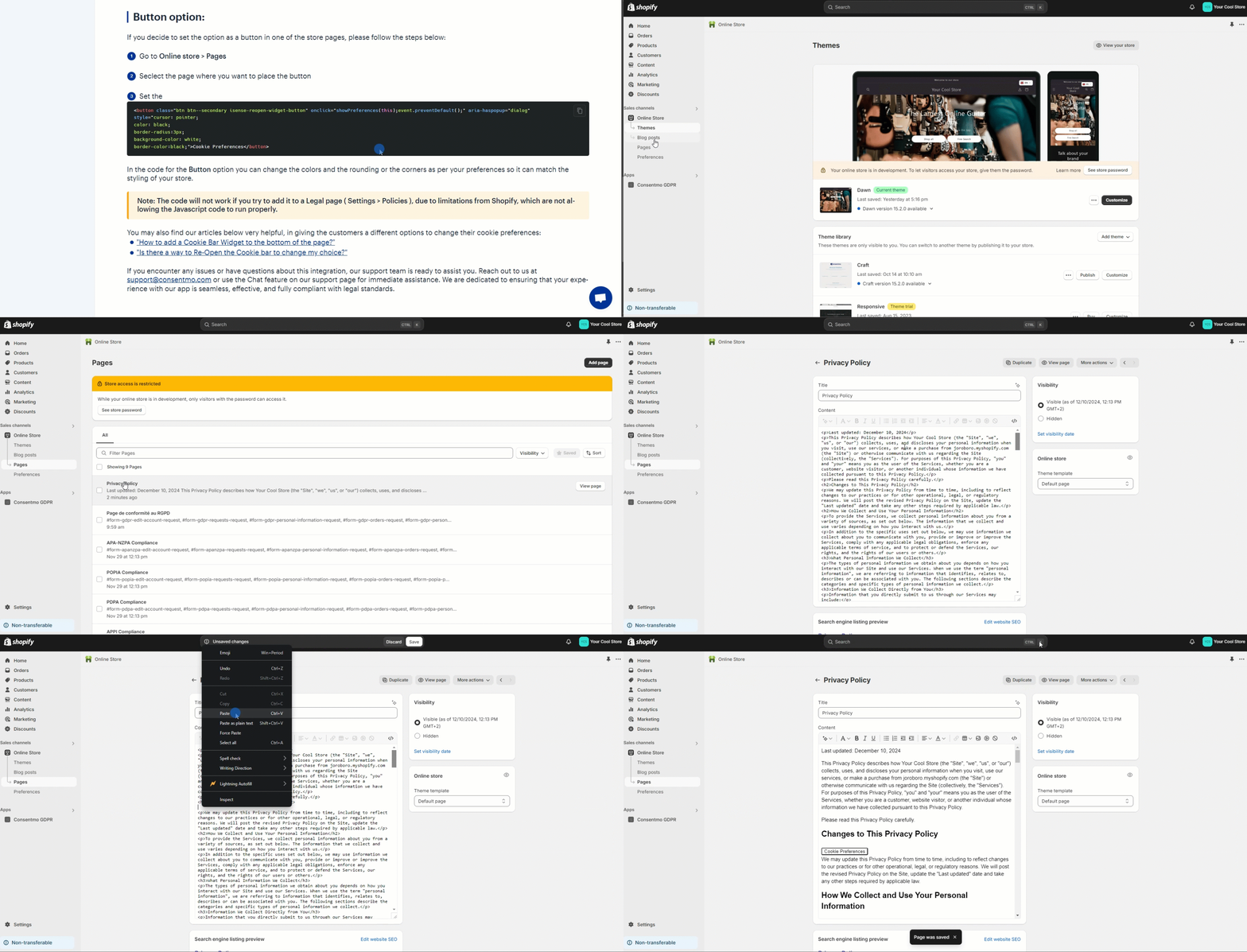](https://gdprstorage.b-cdn.net/faq/gif/change-consent-page-button.gif) ||| **Note:** The code will **not** work if you try to add it to a **Legal** page ( **Settings > Policies** ), due to limitations from Shopify, which are not allowing the Javascript code to run properly. # Other options for Consent change You can find other options that you can use in order to provide the users with the freedom of changing their cookies selection: * [Cookie widget - Re-open cookie banner](/en/article/cookie-widget-re-open-cookie-banner-146n1j3/) # Need help? For direct support, you can reach out via the live chat or by sending an email to our support team at [support@consentmo.com](mailto:support@consentmo.com)