
Goolge Consent Mode V2 integration in Consentmo GDPR app
Integration Steps
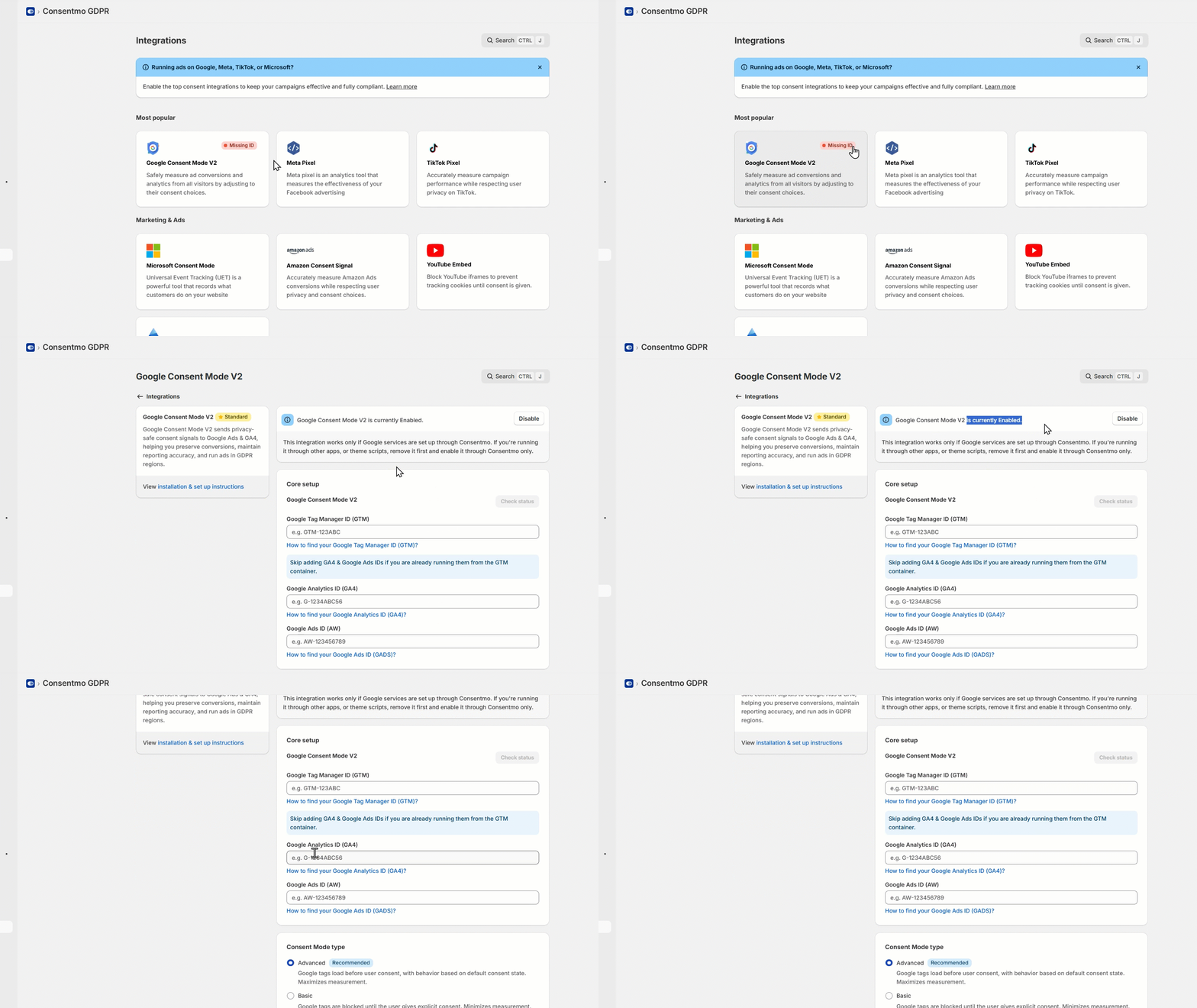
- Navigate to Consentmo's settings and click on the Integrations tab in the left menu.
- Go to Google Consent Mode V2 section
- After that Enable the Google Consent Mode V2 option
- From the menu there, add your Google services' IDs in the fields Google Tag Manager, Google Analytics, and Google Ads
- Save the changes
If you are using only a GTM container to manage the tags in your store, please make sure to add only the container ID in the integration fields.
Below there is also a reference on the process of setting and testing this as well:
Error handling
A possible error may occur in the app integration status if the setup is not done correctly.
The possible errors you may receive are for:
- Default states not set correctly
Such error may occur if the cookie categories in the app are not set as per the compliance requirements, for all of them to be blocked correctly:

As you can see above, there is an automated option in the app for fixing this error right away from the "Block cookies now" option.
- Duplicate tags loaded in the store
This integration works only if Google services are set up through Consentmo. If you're running it through other apps, or theme scripts, remove it first and enable it through Consentmo only.
However, it works fine with the GA4 and Google Ads tags running from the Google & YouTube channel, as bot the sales channel and Consentmo are integrated with the Shopify Customer Privacy API!
In the above example the GA4 tag is already running from the GTM container and there is no need for adding it in the designated field as well.

- No hits (cookieless pings) set if in Advanced mode
If such an error occurs, please make sure to double check the settings of the events and tags running from the GTM container or the Google tags as well.
In this case, the Tag is running fine from the app but there is something wrong with the way the tag is setting the events and hits once loaded.

- Missing IDs
That is mostly happening when the integration is enabled, but no IDs are added in the designated fields for this for GTM, GA4 or Google Ads
- Wrong ID
In these case, make sure to double check the correct format of the ID and also if it is exactly the same as the one you are looking to integrate.
We recommend pasting it as it is from the tag settings and not typing it in manually.

Need help?
In case you need any assistance, please make sure to reach out to our support team via live chat or at support@consentmo.com
Updated on: 23/02/2026
Thank you!