
Cookie widget/ Footer link - Re-open cookie banner
You can also set any of the options mentioned in the guide below, so the visitors can change their cookies choice at any time:
It is recommended to have such an option for your visitors so you can comply with the law requirements.
You have the options to set this either as a:
or
Where to find it?
Available exclusively for Plus and Enterprise plan users, this widget can be found with the below steps:
- Go to the Cookie banner tab
- Open the Design section
- Scroll down to the Cookie widget section
- Toggle On the switcher for the option

Customization Options:
- Appearance:
Choose the widget's placement on your page and decide between an icon or a text button format.
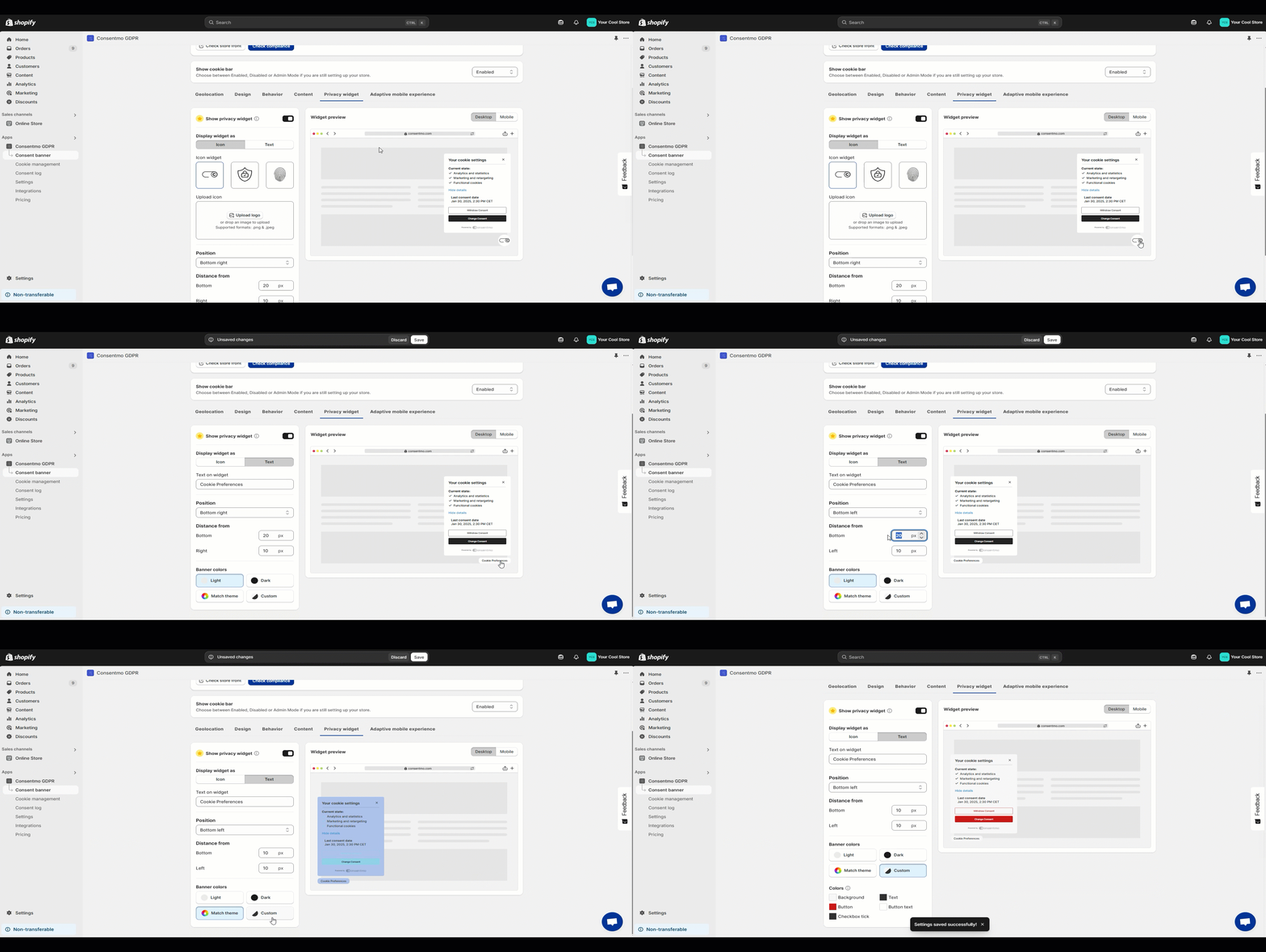
- Design
There you also have the option to adjust the colors of the widget, from the Widget colors section, as shown here:

- Positioning & visibility
From this section you are able to select the position of the widget as well as set conditions for the device types it should be showing for.
It can be set to show on either mobile or desktop, or for both.

Visibility:
- The widget will appear for visitors in regions where the Cookie banner is active, as per your settings in the Geolocation tab.

- It remains hidden if the Cookie banner is disabled.
Footer/Header link option
Now the Cookie widget section have the option for setting this up as a link in the Footer or Header menu of the store as well.
Here are the steps for setting this up:
- In the Cookie banner tab > Design scroll down to the Cookie widget section
- Once enabled, make sure to select the Link option
- A menu will open with an option to set a CSS selector.
- In the CSS selector field, add the selector of the element next to which the accessibility link will be placed
You can get the correct CSS selector from the console of the browser by inspecting the element next to which the Accessibility link will be placed:

- Once you copy the correct CSS selector add it in the respective field

- Select the positioning of the link, and se if it should be Before or After the element you added in the CSS selector field

- Once all of the above is set, Save the changes and navigate to your store front. In a clear browser check if the changes are applied correctly.
- If for some reason you need to have the link in another place as well or the Desktop and the Mobile view of the store selectors are different, you have the option to set a second selector as well as shown below:

Here is also a reference on the process and the steps above:

Need Help?
- Our dedicated support team is just an email away at support@consentmo.com for any assistance you require.
Updated on: 10/03/2026
Thank you!