
Consentmo - Tracker Manager
Consentmo Cookies & Trackers Manager
The Cookies & Trackers Manager in Consentmo helps you scan your Shopify store, identify cookies and other tracking technologies, categorize them, and keep your tracker information up to date.
You can find it under:
Consentmo GDPR → Monitoring & Trackers → Cookies & trackers
Running a Cookie Scan
To scan your storefront:
- Open Monitoring & Trackers.
- Select Cookies & trackers.
- Click Start scan now.
- Wait for the scan to complete.
The scan continues in the background, so you can leave the page while it is running.
Once complete, Consentmo shows the trackers found across your storefront, including:
- Cookies
- Scripts
- Storage
- Pixels and others
It also highlights trackers that still need review.

Scanning a Password-Protected Store
If your Shopify storefront is password protected, Consentmo will ask you to add the storefront password before scanning.
Click Add password, enter the password, and save it.
This allows the scanner to access the storefront and provide more complete scan results.

Reviewing Scan Results
After a scan, the overview shows:
- Total number of detected trackers
- Trackers grouped by consent category
- Number of Cookies, Scripts, Storage items, and Pixels/other trackers
- Trackers that still need to be reviewed
You can select any tracker type from the overview to filter the results table.
Tracker Categories
Detected trackers are organized into:
- Necessary
- Preferences
- Statistics
- Marketing
- Unclassified
The category overview makes it easier to identify trackers that still need attention.
Auto-Categorizing Trackers
If Consentmo finds trackers that are not yet categorized, you can use Auto-categorize.
The AI-assisted categorization reviews the detected trackers and assigns suitable categories and available provider information.
The process runs in the background, so you can continue using the app while it completes.
Any trackers that still require attention remain under Needs review and can be updated manually.
Managing Trackers
Trackers are grouped by their detected provider or source, such as Shopify, Klaviyo, Hotjar, or installed apps.
Expand a provider to review its individual trackers.
Available information can include:
- Tracker name
- Category
- Provider
- Source URL
- Tracker type
You can use the available actions to edit or remove individual entries.
Trackers That Need Review
The Needs review section highlights entries where information is still missing, such as an unknown provider.
These trackers can be reviewed and updated manually or processed with Auto-categorize where available.
Adding a Tracker Manually
If a tracker is not detected automatically, click Add Tracker.
You can configure:
- Name
- Type
- Provider
- Category
- Party
- Duration
- Description
The description can be shown to visitors through your cookie information and Smart Cookie Policy.

Scheduled Scans
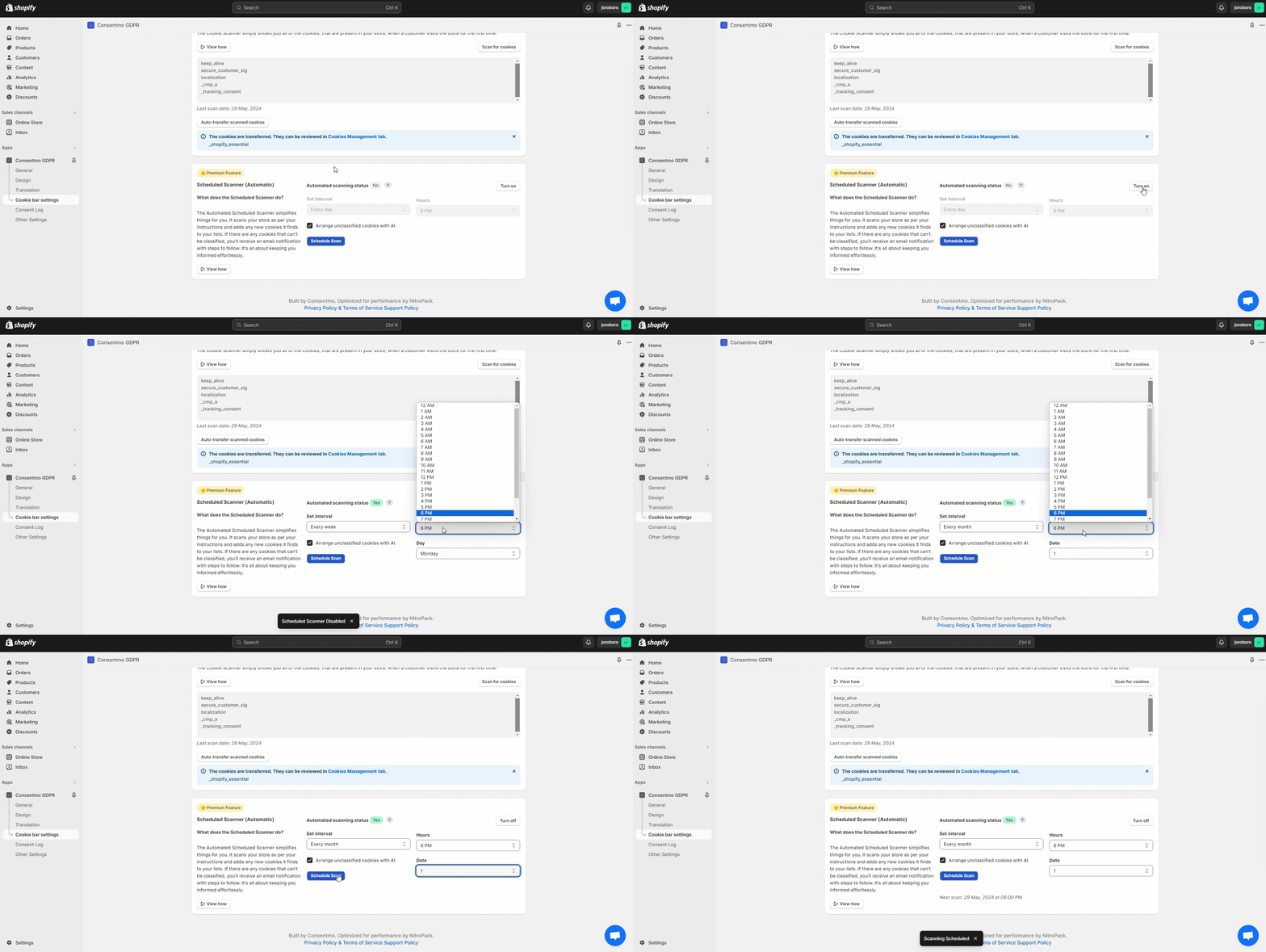
Scheduled scanning is available on eligible Plus plans and lets Consentmo regularly check your store for new or changed trackers.
Enable Next scan or select Edit schedule to configure:
- Interval
- Day
- Time
- After each scan, you'll receive an email report - from the "View Scan Results" you will be redirected to the scanner section of the app to check the results.
The report Consentmo users receive after a scan

Scheduled scans are especially useful after:
- Installing or updating apps
- Launching new marketing campaigns
- Adding custom code
- Updating or changing your Shopify theme
The next scheduled scan is displayed at the top of the page.
Smart Cookie Policy
The Cookies & Trackers section also shows the current status of your Smart Cookie Policy.
The Smart Cookie Policy can use the tracker information maintained in Consentmo to provide customers with an up-to-date overview of the tracking technologies used by your store.
Showing Tracker Information to Visitors
Once your trackers have been reviewed and categorized, the information can also be used in your customer-facing cookie information.
For more details, see:
Need help?
If you need assistance scanning or categorizing trackers, contact our support team through the in-app live chat or at support@consentmo.com.
Updated on: 16/10/2026
Thank you!